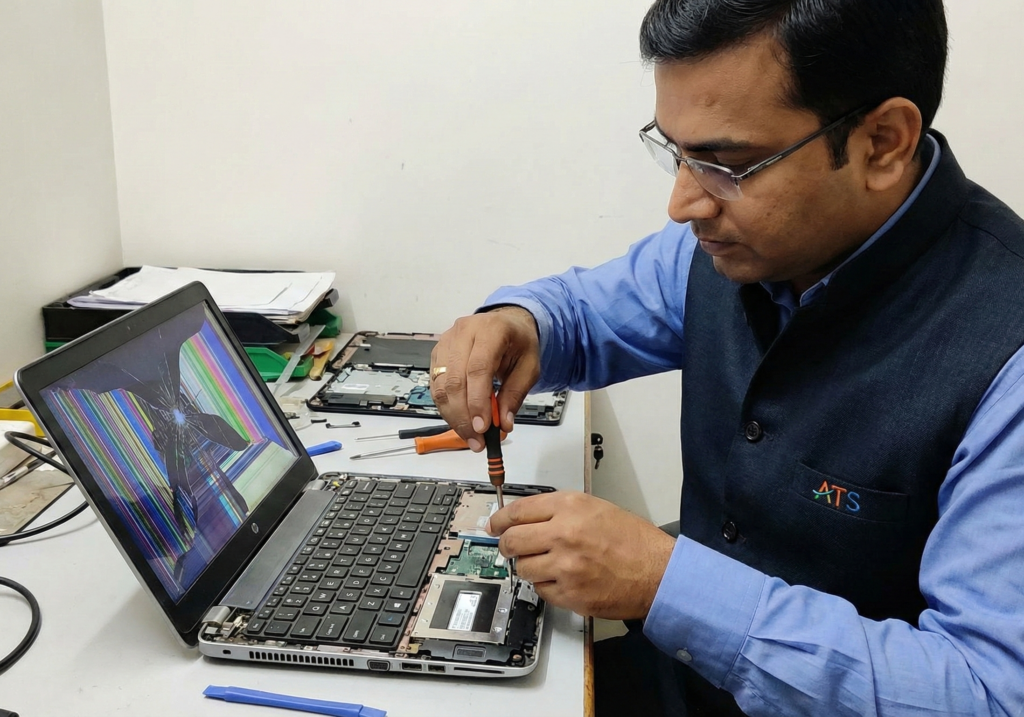
Is your laptop overheating, shutting down, or making loud fan noise?
Laptop fan problems cause overheating, which can damage your processor and other components. We clean, repair, or replace laptop cooling fans to keep your device running cool and quiet.
Signs Your Laptop Fan Needs Service
❌ Overheating & Shutting Down Laptop becomes very hot and shuts down during use—fan not working properly.
❌ Loud Fan Noise Unusual grinding, buzzing, or rattling sounds—bearings worn out or debris inside.
❌ Fan Not Spinning No air coming from vents, fan completely stopped—replacement needed.
❌ Constant High-Speed Fan Fan always running at maximum speed, very noisy—cooling system issue.
❌ Error Messages “System fan has failed” or temperature warnings on startup.
❌ Bottom Gets Very Hot Laptop base too hot to touch—poor heat dissipation.
.
Our Fan Services
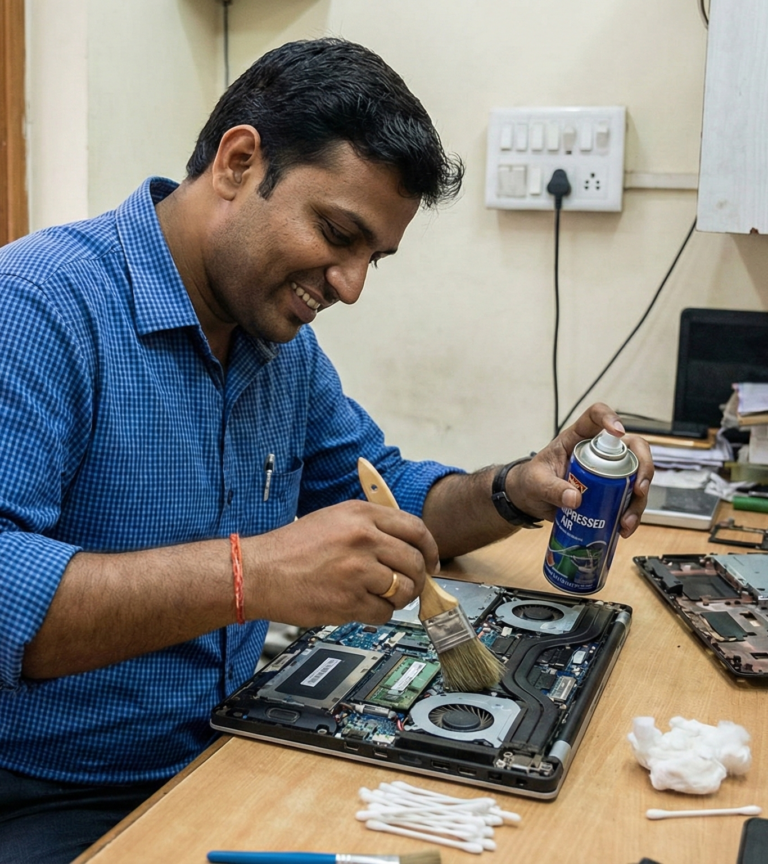
1. Deep Cleaning & Maintenance
Remove dust and debris from fan and heat sink
Clean air vents
Reapply thermal paste on processor
Test cooling efficiency
Cost: ₹500 – 800
Time: 1-2 hours
2. Fan Repair
Fix loose fan blades
Lubricate bearings
Repair fan connections
Cost: ₹800 – 1,200
Time: 2-3 hours
3. Fan Replacement
Replace faulty cooling fan
Install new heat sink (if needed)
Apply fresh thermal paste
Complete testing
Cost: ₹1,500 – 3,500 (varies by model)
Time: 2-4 hours
Why Fan Problems Happen
Dust Accumulation: Most common—dust blocks airflow
Worn Bearings: Fan gets old, bearings fail
Thermal Paste Dried: Old paste doesn’t transfer heat properly
Fan Motor Failure: Electrical component failure
Blocked Vents: External dust blocking air intake/exhaust
What's Included in Our Service
✅ Complete disassembly and inspection ✅ Deep cleaning of fan, heat sink, and vents ✅ Thermal paste replacement (Arctic MX-4 or equivalent) ✅ Fan replacement with compatible part (if needed) ✅ Temperature testing before and after ✅ 30-day service warranty
Exact cost depends on laptop model and fan availability
Prevention Tips
Clean vents every 6 months
Use laptop on hard, flat surfaces (not on bed/pillow)
Don’t block air vents
Keep room dust-free
Use cooling pad for gaming/heavy work
📞 Fix Your Overheating Laptop Today
Call Now
Visit: Thillai Nagar, Trichy
Free temperature check—bring your laptop!